
Recovery phrase
- Lecture
- 3 minutes
- Catégories
- Account and data recovery
- Manage account
A recovery phrase is an account recovery option. It lets you reset your password and recover your account data (emails, calendars, contacts, files, passwords) at the same time. We strongly recommend enabling this option.
In this article
- How it works
- How to enable your recovery phrase
- How to store your recovery phrase safely
- How to use your recovery phrase
How it works
A recovery phrase is a 12-word sequence that acts as a one-time backup password for your account. If you get locked out of your account, it will allow you to reset your password and recover your encrypted data.
- If you downloaded a Recovery Kit when you created your account, you’ll find your recovery phrase there.
- Alternatively, you can enable, disable, or generate a new recovery phrase in your account settings.
How to enable your recovery phrase
- Sign in to account.proton.me and open your account settings.
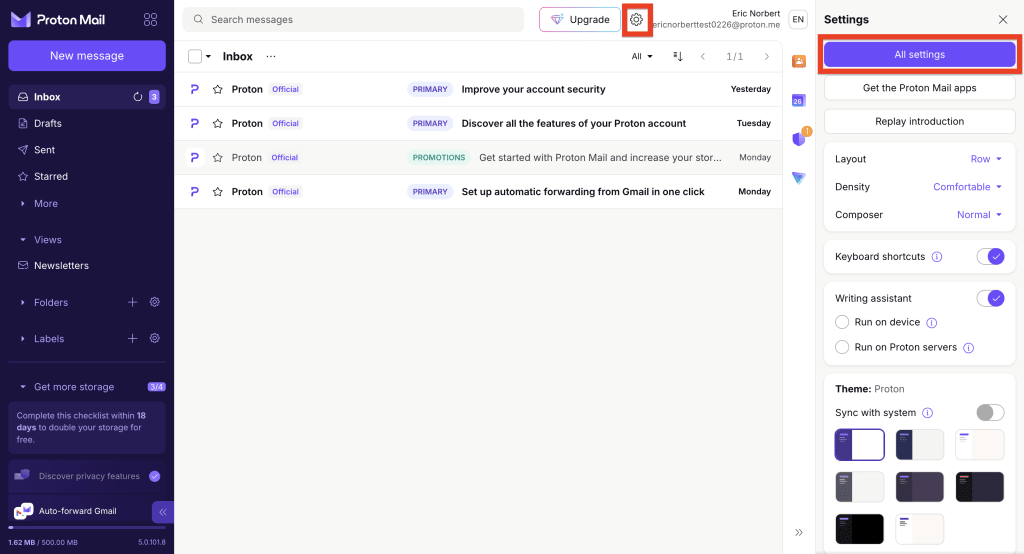
- Select Recovery from the sidebar. Scroll to Advanced recovery options and select Recovery phrase.

3. Click Create recovery phrase.

4. Click the Download icon to save your recovery phrase as a PDF.

That’s it. Your recovery phrase is now active and can be used to recover your account and data. Make sure you keep it somewhere safe.
How to store your recovery phrase safely
Your recovery phrase must be kept somewhere secure but accessible. Don’t leave it somewhere it could be lost, or in a location that you could easily forget.
You might want to print it out and store it in a safe (or wherever you keep important documents). If you’d rather store it digitally, try an encrypted password manager or cloud storage.
We’d usually recommend Proton Drive(nouvelle fenêtre) or Proton Pass(nouvelle fenêtre), but not for this. You won’t be able to access any Proton services if you get locked out.
How to use your recovery phrase
If you lose your password, your recovery phrase can unlock your account and its data.
Reset your password
- Go to the Proton sign-in page. Select Trouble signing in? then select Forgot password from the menu.

2. Enter your email or username. Select Next.

3. Enter your 12-word recovery phrase. Select Reset password.

4. Select Continue.

5. Create your new password. Select Continue.

That’s it. You can now sign in to Proton with your new password. Your account data is automatically restored.
Recover your data
If you used Email or SMS recovery to reset your password, you may find that some of your account data is locked.
If you enabled your recovery phrase before losing your password, you can use it to unlock your account data.
- Sign in to account.proton.me and open your account settings.
- Select Recovery from the sidebar.
- You should have a notification titled Some of your encrypted data is locked. Select Unlock data.

4. Stay in the Phrase tab. Enter your 12-word recovery phrase and select Recover data.

Your data is recovered.