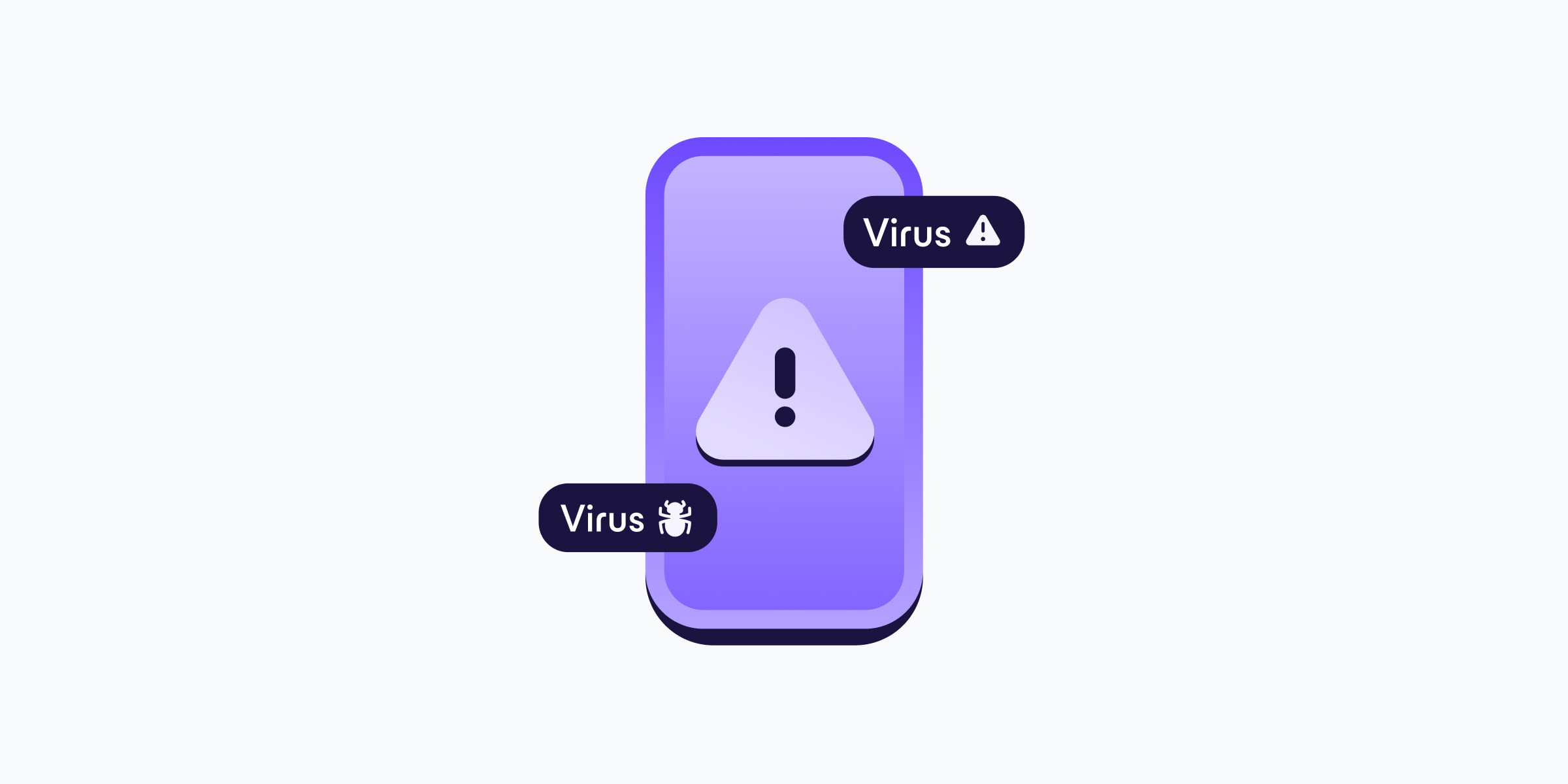
If your phone is behaving in unusual ways, like unexpected data usage spikes or rapid battery drain, there’s a chance it might have a virus. Here are some of the telltale signs that your phone is infected, what you can do to clean it, and how to ensure your phone is protected in the future.
- What is a phone virus?
- Signs your phone has a virus
- How to check if your phone has a virus
- Should you use additional antivirus software?
- How to protect your phone from viruses
What is a phone virus?
A phone virus is a type of software that is designed to spread throughout the files, apps, and data on your phone. Once a user opens an infected file the virus can infect the host and set out to replicate itself, infecting other files and devices in the same way a biological virus infects other people who come into contact with the host.
Many people use the terms “virus” and “malware” interchangeably, but a virus is a type of malware(nouvelle fenêtre). Malware is an umbrella term for software that steals, disrupts, or deletes data, and also includes things like ransomware and spyware.
Signs your phone has a virus
There are a number of symptoms that might indicate your phone has a virus.
Unusual performance issues
- Rapid battery drain: Your battery life has suddenly dropped without a change in your usage habits.
- Overheating: Your phone feels hot to the touch, even when you aren’t using energy-intensive apps like games or video streaming.
- Sluggish performance: Apps take a long time to open, the home screen freezes, or your phone lags significantly when scrolling or typing.
Malware often runs hidden background processes, draining your battery and slowing down your device. If your phone feels sluggish or hot when you’re not performing processor-intensive tasks, it’s a major red flag.
Strange data or billing activity
- Spike in data usage: You experience an unexplained jump in cellular or Wi-Fi data consumption.
- Mysterious charges: Your phone bill shows premium SMS messages you didn’t send, unexpected subscriptions, or calls to unknown international numbers.
Malware often sends data to remote servers or joins your device to a botnet; a group of internet-connected devices that have been breached and are being controlled by a third party, often to perform DDoS attacks(nouvelle fenêtre).
Toll fraud(nouvelle fenêtre) is a type of malware that is predominantly used to target Android systems. Users are secretly subscribed to premium-rate SMS or telephone services, racking up charges without their knowledge or consent.
Pop-ups and ads
- Unexpected advertising: You have ads popping up on your home screen, inside apps where they shouldn’t be, or even when your browser is closed.
These ads are likely what’s known as adware, and can slow down your device. Adware often gets downloaded automatically with “free” software.
- Fake security alerts: You’re seeing pop-ups and alerts claiming your phone is infected and urging you to download a “cleaner” app.
These alerts are almost always scams designed to install more malware.
App behavior anomalies
- Unknown apps: You notice apps installed on your device that you don’t remember downloading.
- Apps crashing frequently: Legitimate apps start crashing or freezing unexpectedly.
- Unusual permissions: Apps are requesting permissions they don’t need, such as access to contacts, camera, or microphone.
These irregularities could indicate that malicious software is masquerading as legitimate apps, hijacking system resources, or seeking access to your private data.
Network and connectivity issues
- Slow internet speeds: Your connection seems slower than usual, even on strong WiFi.
- Random reboots: Your phone restarts itself without your input.
Hidden malware processes frequently consume your bandwidth to transmit stolen data or join botnets, causing slowdowns and system instability that triggers unexpected restarts.
It should be noted that many of these issues can also be caused by aging hardware, software bugs, or simply by too many apps running in the background, rather than a virus. Regardless of the cause, there are steps you can take to resolve the underlying issue.
How to check if your phone has a virus
Android phone virus checks
Google Play Protect(nouvelle fenêtre) is your first line of defense against viruses and malware on Android devices. Play Protect runs continuously in the background and performs several types of automatic scans:
- App installation scan: Every time you install an app from Google Play Store.
- Periodic device scan: Automatically checks all installed apps regularly (usually daily or weekly).
- Web protection: Scans websites you visit through Chrome for known threats.
- Harmful app removal: Can automatically uninstall detected malware.
Automatic scans happen as long as Play Protect is enabled, which it is by default on most devices.
Manual Play Protect scan
You can trigger a manual scan any time you want by following these steps:
1. Open the Google Play Store app.
2. Tap your profile icon.
3. Select Play Protect.
4. Tap Scan to run an immediate check.

This is useful if you’ve recently installed an app from outside the Play Store (known as sideloading) or if you’re experiencing suspicious behavior.
While Play Protect is helpful, it’s not foolproof. Because it’s not a full antivirus tool, it may struggle to recognize new malware variants. It may also give false negatives in some cases.
Review app permissions
Review which apps have access to your information by using Permission Manager.
1. Go to Settings → Security and Privacy → More privacy settings → Permission Manager.
2. Revoke access for any apps that don’t need it.
Use a third-party anti-virus app
You can download antivirus and anti-malware apps from the Play Store. Just be sure to only download apps from reputable vendors. See Should you use additional antivirus software? below for more details.
iPhone virus check
Because of how iOS is designed, traditional antivirus apps that scan your entire file system for malware don’t exist on the App Store (and Apple wouldn’t allow them to function that way anyway). Instead, iOS’s architecture protects you from phone viruses by ensuring that:
- Apps are sandboxed: Every app on an iPhone runs in its own isolated sandbox. An app can’t access the files, data, or code of another app.
- Apps are reviewed: Apple manually reviews every app before it reaches the App Store. While bad actors sometimes slip through, it’s extremely rare.
- Apps can’t be sideloaded: Outside the EU(nouvelle fenêtre), you can only install apps from the App Store, which drastically reduces infection risk (unless you’ve jailbroken your phone).
To do a manual diagnosis and cleanup, try these steps:
Do a safety check (iPhone with iOS 16 or later)
Review which people and apps have access to your information and devices by using Safety Check.
1. Go to Settings → Privacy & Security → Safety Check → Manage Sharing & Access.
2. Follow the steps to reset or manage access to your information.

Clear Safari data
What seems like malware is often “just” adware or browser redirects trapped in your Safari cache.
1. Go to Settings →Apps → Safari.
2. Scroll down and tap Clear History and Website Data.
This removes cookies and cached scripts that might be causing pop-ups.

Review configuration profiles
Malware sometimes installs a configuration profile to force settings changes or redirect traffic.
1. Go to Settings → General → VPN & Device Management.
2. From here:
- If you don’t see any profiles, then no device management profiles are installed on your device.
- If you do see unfamiliar profiles, select the profile, tap Delete Profile and follow the instructions, then restart your device.
Do a factory reset
If you still suspect a virus, you can restore your phone to factory settings(nouvelle fenêtre). This will completely wipe your phone and enable you to set it up again as new.
Warning: Before resetting, follow Apple’s recommended steps (nouvelle fenêtre)to ensure you’ve backed up your phone correctly.
Should you use additional antivirus software?
Regardless of whether you have an Android or iOS device, good security habits are generally sufficient to prevent phone viruses. However, you could consider additional antivirus software if you:
- Frequently sideload apps (Android devices)
- Download files from untrusted sources
- Handle sensitive financial or business data on your phone
- Want extra peace of mind
Popular options include Bitdefender, Malwarebytes, Norton, and Kaspersky.
If you have an Android device, these apps can actively scan files, monitor app behavior, and block malicious downloads in real-time.
However, if you’re an iPhone user, these apps won’t scan for viruses in the traditional sense. Instead, they focus heavily on web protection (blocking phishing sites), Wi-Fi security, and identity theft monitoring, so iPhone users may prefer to opt for other protections.
How to protect your phone from viruses
Maximizing phone security requires a layered approach. Combining the built-in security measures of your phone with a password manager and a VPN creates a strong line of defense against phishing, credential theft, and network surveillance.
Set up automatic updates
Automatic software updates ensure that Apple and Google can swiftly patch critical vulnerabilities.
iPhone software updates
1. Select Settings → General → Software Update.
2. Toggle on Automatic Updates.
You can also turn on Background Security Improvements to provide additional protection in between software updates.
1. Select Settings → Privacy & Security → Background Security Improvements.
2. Toggle on Automatically Install.
Android software updates
1. Go to Settings → System → System Update and enable automatic updates.
2. Disable Install Unknown Apps (keep this setting off for all apps unless absolutely necessary).
Install a password manager
A password manager generates and stores unique, complex passwords for every account, eliminating the single biggest cause of breaches: password reuse. It also guards against credential stuffing and phishing by autofilling credentials only on legitimate sites.
Proton Pass protects your logins with zero-knowledge, end-to-end encryption and goes further with built-in 2FA authenticator codes, unlimited hide-my-email aliases to shield your identity, and Dark Web Monitoring that alerts you if your credentials are leaked.
Use a VPN
A VPN encrypts your internet traffic, shielding it from ISPs(nouvelle fenêtre) and other third parties. It also hides your IP address so websites and trackers can’t identify or profile you.
Proton VPN is open-source and independently audited, with a strict no-logs policy backed by Swiss privacy law. If you have a Plus plan, our NetShield Ad-blocker(nouvelle fenêtre) DNS filtering solution can block connections to adware and malware domains
Stay legit
If you’re on Android, stick to apps available in the Google Play Store or a reputable app store like F-droid(nouvelle fenêtre). If you do need to sideload an app, only download APKs from the developer’s official website and verify where possible. If you’re on an iPhone, don’t jailbreak your phone. This opens you up to viruses and other malware, and negates many of the protections that Apple products otherwise offer.